What is Tun2Socks?
Tun2Socks is a utility that redirects network traffic through a SOCKS proxy, enabling applications without native proxy support to connect securely. With Toolip, Tun2Socks allows you to manage all your system traffic via a reliable proxy, ensuring privacy, security, and access to geo-specific content. Prefer an enterprise-grade guide? Learn more about Oculus Proxies Tun2Socks Integration Guide.How to Set Up Toolip With Tun2Socks
1
Install Tun2Socks
1. Download the Tun2Socks app from a trusted source or the Google Play Store.2. Install the app and open it to access the main configuration screen.
2
Configure Proxy Settings in Tun2Socks
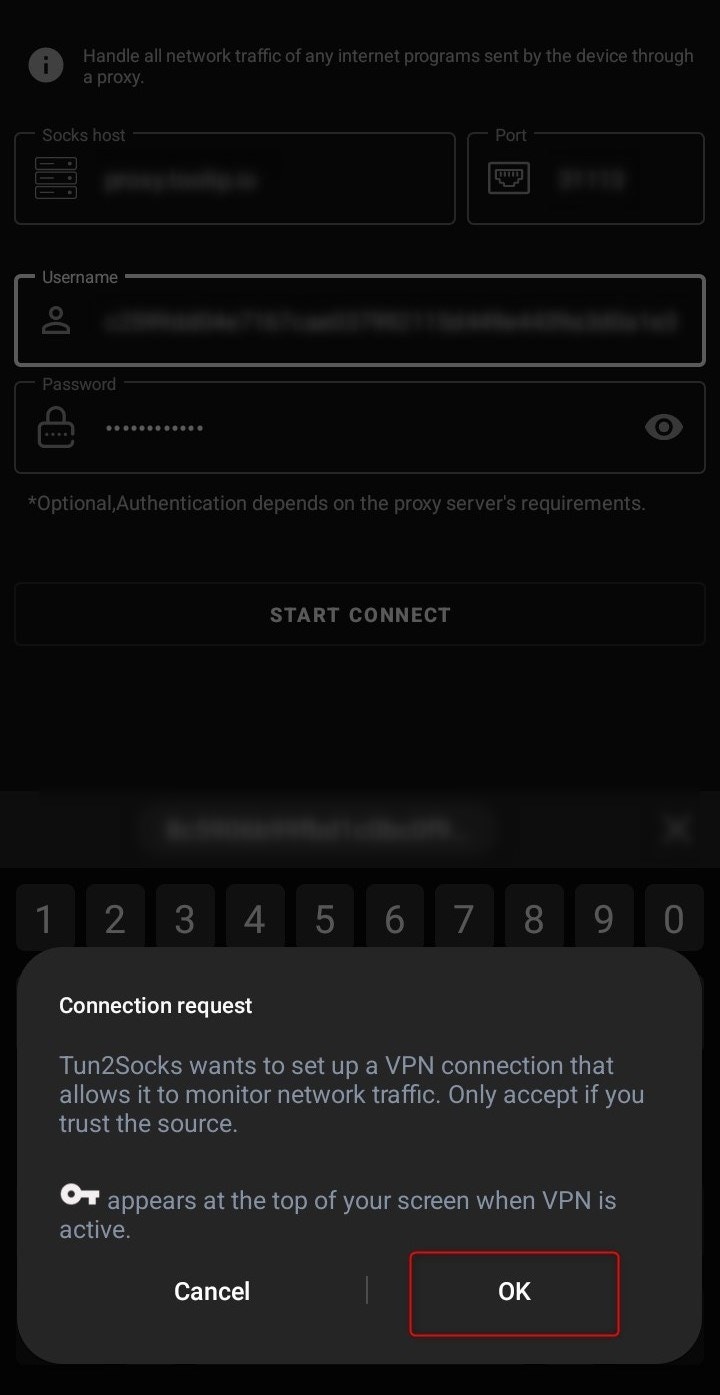
1. In the main Tun2Socks interface, input your Toolip proxy details: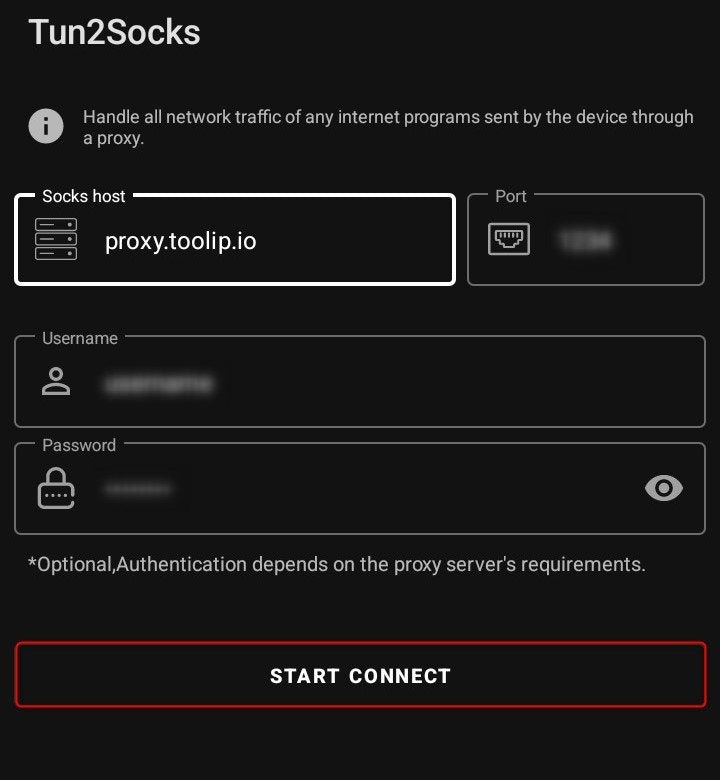
-
Socks Host: Enter
proxy.toolip.io. - Port: Use the port number provided in your Toolip dashboard.
-
Username: Enter your Toolip proxy
username. -
Password: Enter your Toolip proxy
password.
If you’re using geo-targeted proxies, format your username as
your-username-country-XX (e.g., your-username-country-US for a US-based IP).3
Verify the Proxy Connection
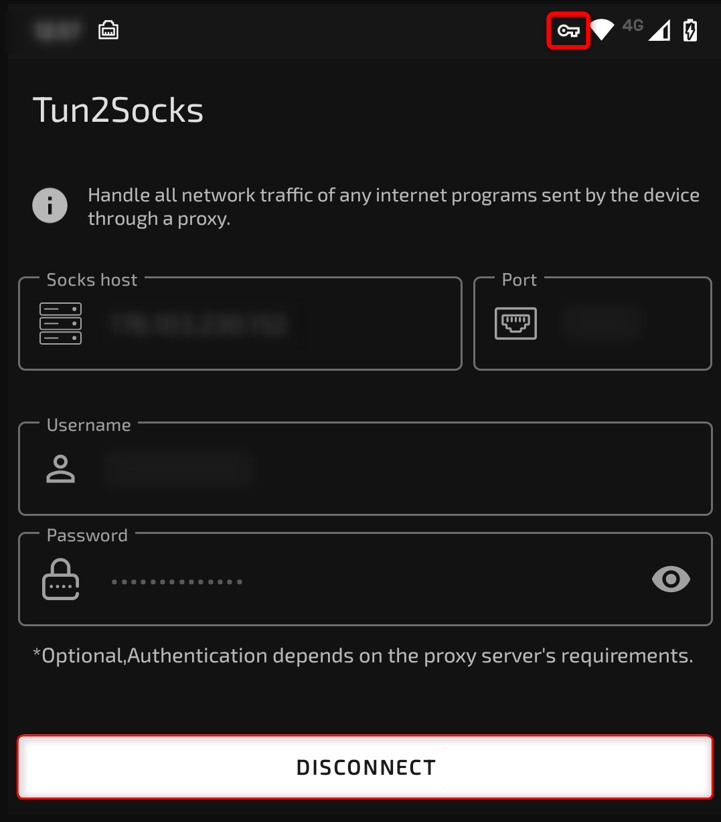
1. Once the proxy is active, a key icon will appear in your device’s notification area, confirming that your traffic is now routed securely through the proxy.2. To confirm the setup, visit a site like httpbin.org/ip to verify that the IP displayed matches your Toolip proxy.
4
Disconnect When Needed
1. To stop using the proxy, simply tap Disconnect in the Tun2Socks app. This will revert your device back to its standard network connection.